DisclosureGameRath may earn a commission if you buy through links on this page, at no extra cost to you. How we make money
GameRath may earn a commission if you buy through links on this page.
This page is a buyer's guide compiled from manufacturer specifications and published reviews. GameRath did not test these products in a lab.
Most bad gaming hardware purchases come from the same mistake: spending the money in the wrong order. A premium keyboard next to a 60Hz monitor, a flagship GPU paired with a bargain SSD that slows down mid-install, a headset chosen for its RGB instead of its comfort. This page is the starting point for avoiding that. It explains where to spend first, which specs deserve attention, and which of our buyer's guides covers each product category in detail.
Every product linked here has its own page with specifications, launch pricing where it is known, what published reviews praised, what they criticized, and who the product suits. We do not run lab tests. We read the manufacturer's spec sheets and the major review outlets, check where they agree and disagree, and tell you what that adds up to.
Where to Spend First
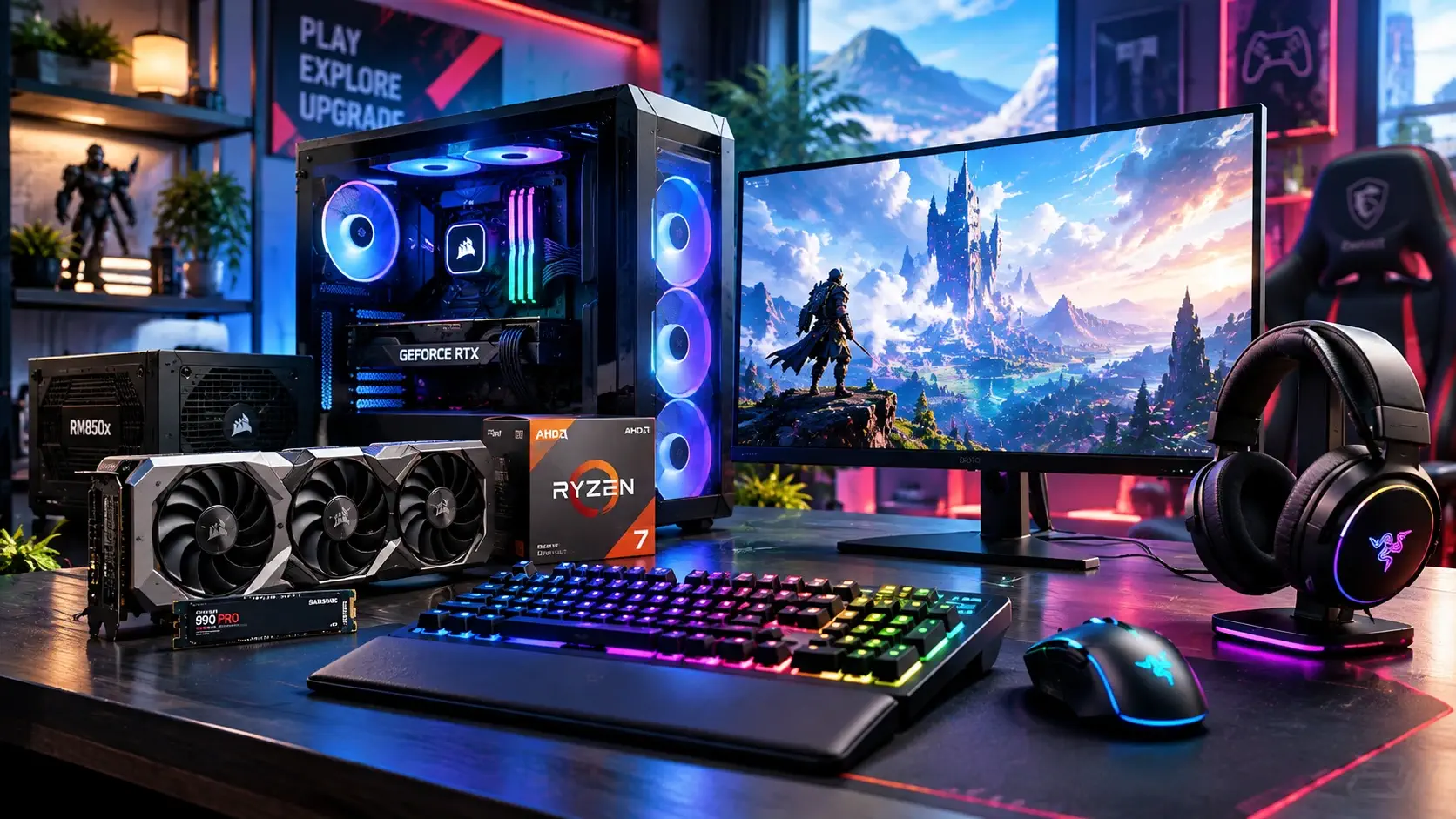
If your budget is limited, the order matters more than the brand. A reasonable priority list for a gaming PC looks like this:
- The graphics card. It sets the ceiling for frame rate and resolution in almost every modern game. Everything else is secondary until this is right.
- The monitor. The GPU can only show you what the screen can display. A card that renders 144 frames per second is wasted on a 60Hz panel, and our guide on fixing a monitor stuck at 60Hz on Windows 11 covers the most common reason people never see the refresh rate they paid for.
- Storage. A fast NVMe SSD shortens load times and keeps installs painless, but the gap between a good and a great drive matters less than the gap between a good drive and an old hard disk.
- Cooling and the case. These decide how quiet the build is and whether your parts hold their boost clocks. They rarely change frame rate directly, but a bad airflow setup can.
- Peripherals. The mouse, keyboard and headset are the parts you touch and hear every minute you play. They are cheap compared with a GPU, and a good one lasts through several PC upgrades.
If you are building from scratch rather than upgrading, start with our full builds: the budget gaming PC for 1080p/144fps and the high-end gaming PC build show how these priorities translate into parts lists.
Graphics Cards: Match the Card to Your Resolution
The right GPU depends on one question: what resolution and refresh rate do you want to play at? A card that is perfect for 1080p can struggle at 1440p, and a card built for 1440p may be overkill if your monitor is 1080p. VRAM is the second question. 8GB is enough for many 1080p games but is the first thing reviewers flag when a card is aimed at higher settings.
We have five GPU guides that cover the current mainstream and upper-mid-range:
- The RTX 4060 launched at $299 as an efficient 1080p card with 8GB of VRAM. It suits players on a 1080p monitor who want low power draw and do not need high texture settings in the newest games.
- The RTX 4070 launched at $599 as an efficient 1440p card with 12GB of VRAM. Published reviews praised its 1440p results and low power draw while noting that native 4K is weak.
- The RTX 5070 launched at $549 with 12GB of GDDR7 and DLSS 4. Our guide covers NVIDIA's RTX 4090 comparison and what the specs actually say about it.
- The RX 7800 XT launched at $499 with 16GB of VRAM aimed at 1440p, which makes it the natural AMD alternative to the RTX 4070.
- The RX 9070 XT launched at $599 with 16GB of VRAM and RDNA 4, and it is the card for players who want more headroom at 1440p and some 4K use.
Launch prices are not today's prices. GPU prices move constantly, so check our GPU deals page before buying. If you are torn between the two mid-range cards that most buyers compare, read RTX 4070 vs RX 7800 XT. If your GPU is fine but your frame rate is limited by the processor, the Ryzen 7 9800X3D vs Core Ultra 9 285K comparison covers the CPU side, and there is a separate page for CPU deals.
One setting is worth checking whatever card you buy: Resizable BAR. Our guide on enabling Resizable BAR on NVIDIA and AMD GPUs shows how to turn it on and confirm it is working.
Monitors: Resolution, Refresh Rate and Panel Type
A monitor is a long-term purchase. It will probably outlive two GPUs, so it is worth buying for the next few years rather than for today's card. Three specs do most of the work.
Resolution and size. 1080p at 24 inches is sharp enough for most people and easy for a modest GPU to drive. 1440p at 27 inches is the common sweet spot for a mid-range card. 4K looks excellent but needs a powerful GPU or a willingness to lower settings.
Refresh rate. 144Hz and above makes motion noticeably smoother than 60Hz, especially in fast shooters. Beyond roughly 165Hz the gains get smaller and harder to notice unless you play competitively on a card that can actually deliver those frame rates.
Panel type. IPS panels give good color and viewing angles. OLED and QD-OLED panels give much deeper contrast and fast response, but come with higher prices and burn-in questions that are worth reading about before you buy.
Our five monitor guides cover the range:
- The AOC 24G2 is a 23.8-inch 1080p IPS monitor at 144Hz, the budget pick for a 1080p setup.
- The ASUS TUF Gaming VG27AQ is a 27-inch 1440p IPS monitor at 165Hz with G-SYNC Compatible certification.
- The Gigabyte M27Q is a 27-inch 1440p 170Hz IPS monitor with a built-in KVM switch, with a note on its two hardware revisions.
- The LG UltraGear 27GR93U is a 27-inch 4K IPS monitor at 144Hz with two HDMI 2.1 ports.
- The Alienware AW3423DWF is a 34-inch curved QD-OLED ultrawide at 165Hz, with notes on text clarity, HDR brightness and burn-in coverage.
The two 27-inch 1440p IPS monitors are close enough that many buyers cannot choose between them, so we wrote a direct comparison: ASUS TUF Gaming VG27AQ vs Gigabyte M27Q. For the general rules behind these picks, read How to Choose a Gaming Monitor, and for current prices see gaming monitor deals.
Keyboards and Mice: Where Feel Beats Specs
Peripherals are the one category where personal preference outweighs a spec sheet. Hand size, grip style and typing habits matter more than a DPI number or a switch brand. That is why our guides here focus on weight, shape, connection type and the trade-offs reviewers keep returning to.
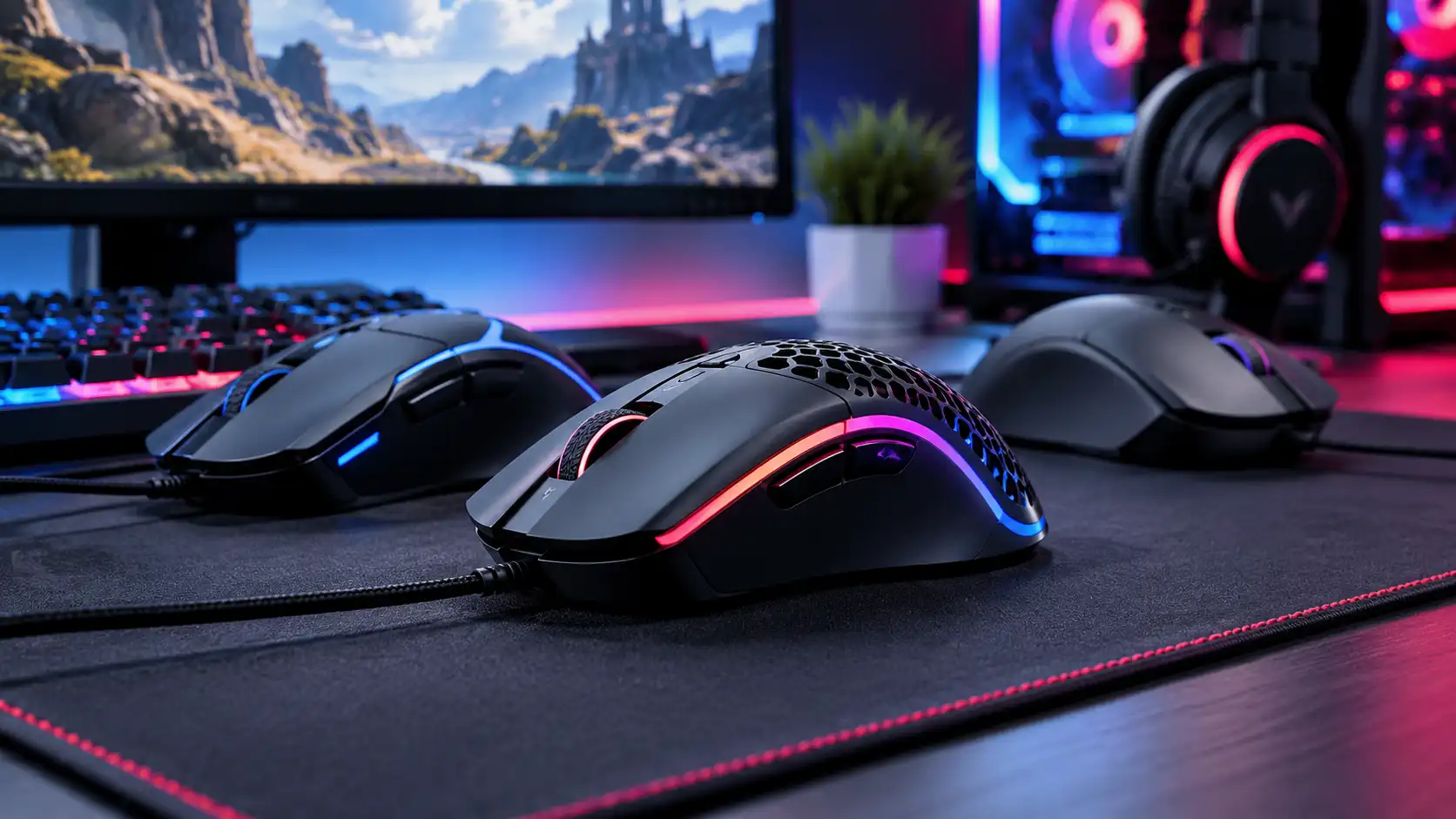
Mice. Weight and sensor quality matter far more than the maximum DPI printed on the box. Wireless is no longer a latency compromise when it uses a proper 2.4GHz connection. Our general advice is in How to Choose a Gaming Mouse. The three mouse guides are:
- The Logitech G305 is a budget wireless mouse that runs on one AA battery rated for 250 hours. Reviews praise its sensor and connection and note its 99 g weight.
- The Razer DeathAdder V3 is a wired mouse that weighs 59 grams and supports up to 8000 Hz polling. It launched at $69.99, and reviews praise its shape and sensor while questioning its value.
- The Logitech G PRO X Superlight is a right-handed wireless mouse of roughly 61 to 63 grams. Outlets praised its sensor and weight and flagged its micro-USB port and price. We also compare it with a rival in Superlight vs Razer Viper Ultimate.
Keyboards. The main choices are switch type, size and whether you want to customize. Hot-swappable switches let you change the feel later without soldering, and a tenkeyless layout frees desk space for mouse movement.
- The Keychron K8 Pro is an 87-key wireless TKL keyboard with hot-swappable switches and QMK/VIA support. Reviews praise its build and customization while noting its 90 Hz Bluetooth polling.
- The Razer BlackWidow V3 is a wired, full-size mechanical keyboard with Razer Green or Yellow switches and Chroma RGB. Reviews praise its build and note ABS keycaps and a large footprint.
For current prices on both categories, see our gaming mouse deals and gaming keyboard deals.
Headsets: Comfort First, Then Wireless Type
A headset you cannot wear for three hours is a bad headset, whatever its drivers measure. Weight, clamping force and ear-cup size matter more in practice than frequency-response claims. After comfort, decide between wired and wireless. Wired headsets are simpler and never need charging, while wireless models trade that for freedom of movement and a battery you have to manage. If you want wireless on a PC, look for a 2.4GHz dongle; Bluetooth is convenient but adds latency.
The five headset guides, with the specs that separate them:
- The HyperX Cloud II is a wired headset with an aluminum frame and a USB control box that adds virtual 7.1 surround.
- The Razer BlackShark V2 is a 262g wired esports headset with 50mm TriForce Titanium drivers, a detachable mic and a bundled USB sound card.
- The Logitech G435 is a 165g wireless headset that connects over Lightspeed or Bluetooth. It launched at $79.99, which makes it the light and affordable option.
- The HyperX Cloud Alpha Wireless is a 2.4GHz wireless headset rated for up to 300 hours of battery life. It launched at $199.99.
- The SteelSeries Arctis Nova 7 is a 325g wireless headset that pairs a 2.4GHz dongle with Bluetooth and is rated for up to 38 hours of battery life.
If you are deciding between the two premium wireless options, read SteelSeries Arctis Nova 7 vs HyperX Cloud Alpha Wireless. The general rules are in How to Choose a Gaming Headset, and current prices are on the gaming headset deals page.
Cases and Cooling: Airflow Over Looks
A case and a CPU cooler do not change your frame rate directly, but they decide how loud the PC is under load and whether the parts stay cool enough to hold their boost speeds. The simple rule: a mesh front panel and room for good fans beat a glass-front case with a solid panel. For coolers, a good air cooler is quieter and simpler than many buyers expect, and an AIO liquid cooler becomes worth it on hotter CPUs or when you want a cleaner look and more clearance around the socket.
- The Corsair 4000D Airflow is a mid-tower with a perforated front panel, E-ATX support and 360mm radiator room.
- The NZXT H5 Flow is a $94.99 mid-tower with mesh panels, two quiet stock fans and 360mm front radiator support.
- The Fractal Design Meshify 2 Compact is a compact airflow-focused mid-tower with a mesh front and 360mm radiator support.
- The Cooler Master Hyper 212 3DHP is a $29.99 single-tower air cooler with two trident-shaped heatpipes.
- The Arctic Liquid Freezer III 240 is a 240mm AIO with a dedicated VRM fan and a 6-year warranty.
Check that your cooler fits your case before you order either. Cooler height and radiator size limits are the two most common compatibility surprises in a build.
Storage: NVMe Speed Isn't the Whole Story
For games, almost any modern NVMe SSD is fast enough. The differences that matter in practice are sustained write speed once the cache fills, whether the drive has its own DRAM, and the warranty and endurance rating. A DRAM-less drive can be perfectly good for a game library but may slow down during very large sustained writes. If you want to see whether your drive is overheating or throttling, our guide on checking NVMe SSD temperature and stopping thermal throttling shows how.
- The Crucial P3 Plus is a QLC, DRAM-less PCIe 4.0 SSD that reaches 4TB at a low price, with write speed and endurance trade-offs and a discontinued Crucial consumer line.
- The Kingston NV3 is a DRAM-less PCIe 4.0 NVMe SSD rated up to 6,000MB/s reads, with parts that vary by unit and write speeds that fall once the cache fills.
- The WD Black SN770 is a DRAM-less PCIe 4.0 SSD rated up to 5,150MB/s reads with a 5-year warranty, now superseded by the WD Black SN7100.
- The Samsung 990 EVO Plus is a DRAM-less NVMe SSD rated up to 7,250MB/s that runs on PCIe 4.0 x4 or PCIe 5.0 x2, with a 5-year warranty and mid-range pricing.
- The Seagate FireCuda 530 is a DRAM-equipped PCIe 4.0 SSD rated up to 7,300MB/s reads and 1,275TBW at 1TB, sold with an optional PS5-compatible heatsink at a premium price.
SSD prices change often, so compare current offers on our SSD deals page and, if you are adding memory in the same upgrade, the RAM deals page.
What We'd Skip
A few purchases rarely repay the money, whatever the marketing says:
- Paying more for a higher advertised DPI. The numbers on mouse boxes stopped being a useful buying signal years ago.
- Buying a GPU far beyond your monitor. Match the card to the resolution and refresh rate you actually have.
- Choosing a case for its glass panel. Airflow and fan support matter more than looks.
- Chasing the fastest SSD for a game library. Beyond a good PCIe 4.0 drive, the real-world gain for games is small.
- Buying a headset or keyboard on RGB alone. Comfort and switch feel are what you notice after the first week.
Before You Buy
Specs and launch prices in our guides are a starting point, not a final answer. Prices change weekly, models get revised, and some products are replaced by newer ones. Before you order, check current pricing, confirm the exact model and revision, and make sure the part fits the rest of your setup. When we spot a significant change in a product, we update its page and say so.
For live prices on all of these categories, our gaming deals section tracks GPUs, components and peripherals, and the October Prime Big Deal Days roundup gathers the larger sales in one place.