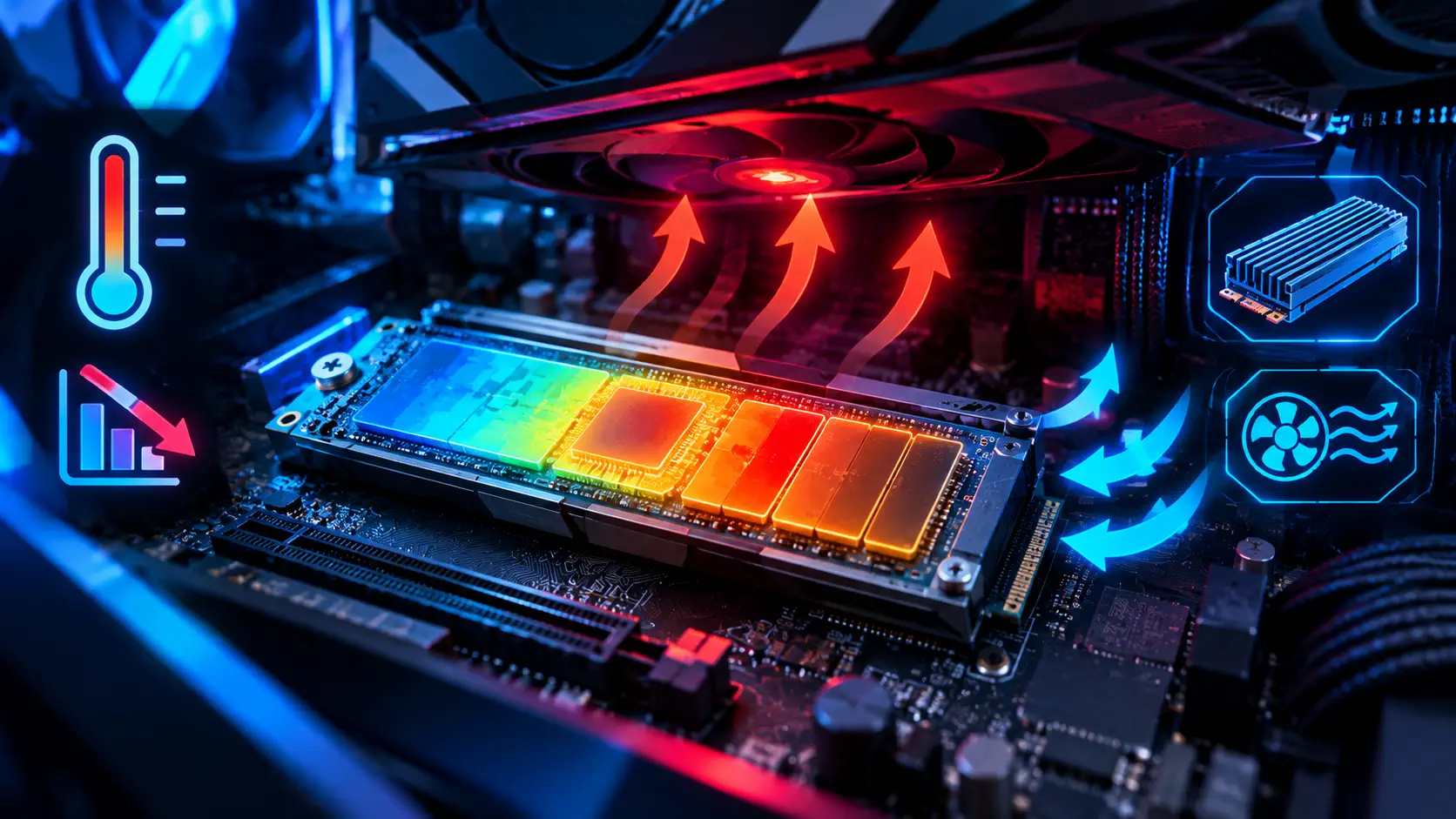
NVMe SSDs are much faster than older drives, but that speed generates heat. A drive that gets too hot protects itself by slowing down, which is called thermal throttling, and you notice it as long load times, stalls during big game installs, or file copies that start fast and then crawl. The good news is that checking your drive's temperature takes less than a minute, and most heat problems have cheap fixes.
How to Check SSD Temperature in Windows 11
Windows 11 can show the temperature of an NVMe drive without installing anything. Open Settings, go to System, then Storage, then Advanced storage settings, and choose Disks & volumes. Select your drive, click Properties, and look under Drive health, where the temperature is listed. This built-in view works for NVMe SSDs only.
You can get the same reading with PowerShell. Open PowerShell as administrator and run a command that queries the drive's storage reliability counter and prints its temperature, as described in Pureinfotech's Windows 11 guide. It is a good option if you prefer the command line, and it also works for NVMe drives only.
For SATA SSDs, older drives, or more detail such as health status and power-on hours, install CrystalDiskInfo. It is free, works with NVMe, SATA SSDs, and hard drives, and is available from the Microsoft Store.
What Temperature Is Normal?
As a rule of thumb, a drive running below about 60 degrees Celsius (140 degrees Fahrenheit) is in a comfortable range. Pureinfotech notes that sustained temperatures above 70 degrees can reduce performance and may shorten the drive's life. Idle temperatures in the 30s to 40s are normal, and brief spikes under heavy writes are expected.
The exact point where a drive starts to throttle differs by model and controller, so check the manufacturer's spec sheet for the stated operating or throttle limit rather than relying on one number. What matters is how the drive behaves over time: a drive that climbs quickly into the 70s and stays there during a long game install or file transfer is the one that needs attention.
Why NVMe Drives Run Hot
Several things push temperatures up. A drive mounted directly under a hot graphics card absorbs heat from it. Small cases with poor airflow trap warm air around the motherboard. Some high-end drives, particularly PCIe 5.0 models, draw more power and run hotter by design, and thin laptop chassis leave little room for cooling at all. A drive with no heatsink is also more exposed than one with a metal cover.
How to Cool a Hot SSD
Start with the free fixes. Make sure your case has a clear airflow path, with intake fans pulling cool air in and exhaust fans pushing hot air out, and keep cable clutter away from the area around the drive. If your motherboard has more than one M.2 slot, move the drive to a slot that is not directly beneath the graphics card.
Next, use a heatsink. Many motherboards ship with M.2 heatsinks, so check yours before buying anything, and remember to peel the protective plastic film off the thermal pad. If your board has none, a basic aftermarket heatsink is inexpensive and often enough. Drives that already include a heatsink, such as many gaming models, may only need better case airflow.
If a drive still throttles after that, check that its firmware is current, since manufacturers sometimes adjust thermal behavior in updates. For a PCIe 5.0 drive that runs very hot, consider whether you need that speed for gaming at all, because the real-world difference in game load times between fast NVMe drives is often small.
When to Buy a New Drive
If you are choosing a drive now, look at sustained write performance and cooling as well as headline speeds. Our buyer's guides to the Samsung 990 EVO Plus, WD Black SN770, and Seagate FireCuda 530 cover how published tests found popular drives behave, and the current SSD deals roundup shows what they cost today. If you are building a new PC, our budget build guide includes storage picks that balance price and speed.
Checking temperatures across the whole system? Our complete gaming PC build and upgrade guide covers the temperature and performance checks worth running after any build or upgrade.
Sources: Pureinfotech — How to check SSD and HDD temperatures on Windows 11