DisclosureGameRath may earn a commission if you buy through links on this page, at no extra cost to you. How we make money
GameRath may earn a commission if you buy through links on this page.
This guide summarizes standard PC-building practice and manufacturer documentation. GameRath did not build or test the parts mentioned. Always follow the manual that comes with your own motherboard, cooler and case, because details differ between models.
A gaming PC is a set of decisions made in the right order, followed by an afternoon of careful assembly and a short list of settings that most people forget to check. This page walks through all three. It is the hub for our PC-building guides: each section links to the page that goes deeper, so you can read straight through or jump to the part you need.
Step 1: Decide Whether to Build or Upgrade
Not every slow PC needs to be replaced. Before you buy anything, work out what is actually holding your games back.
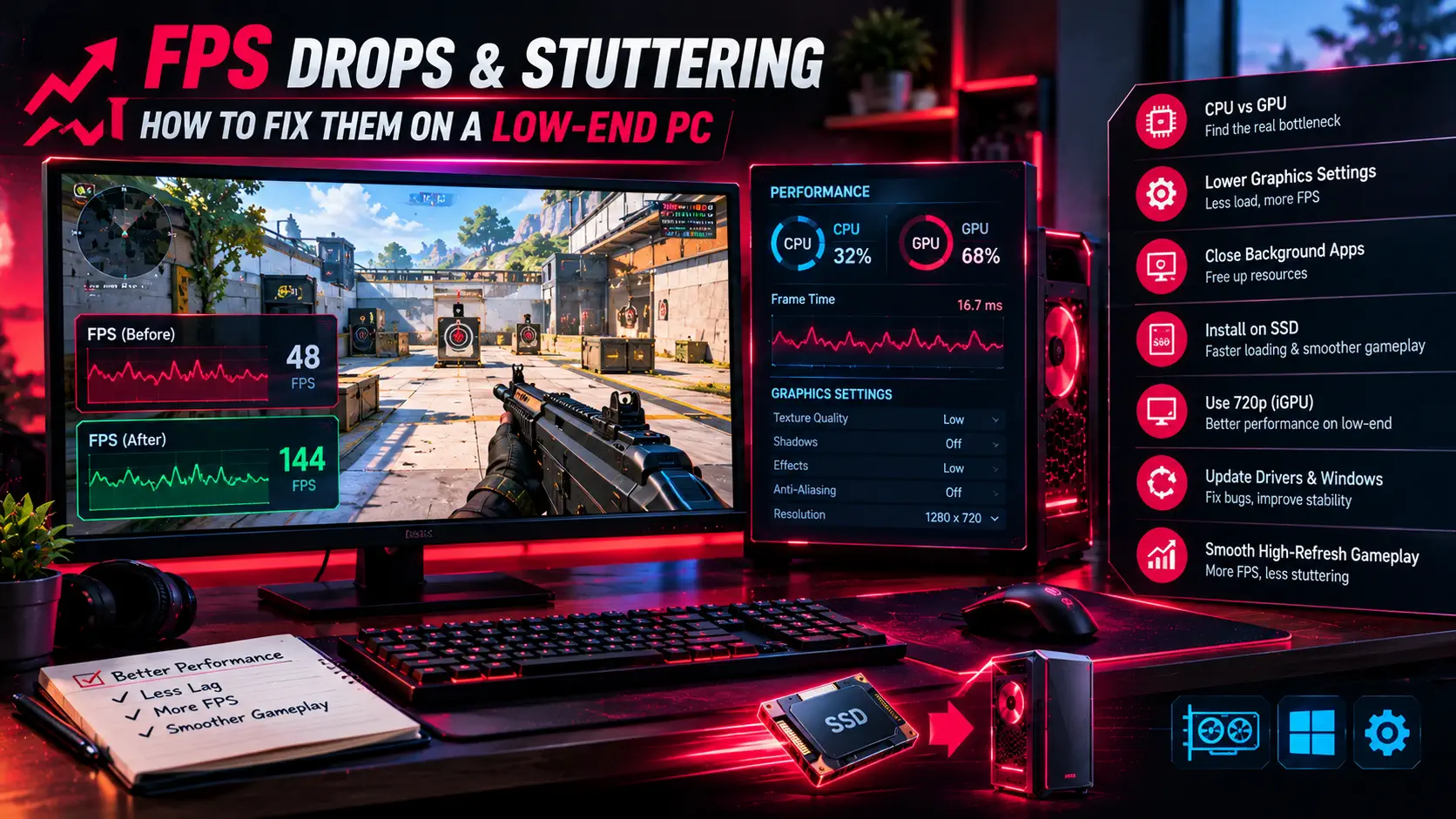
If your frame rate is low and your graphics card sits at full load while playing, the GPU is the limit, and a new card is the upgrade that matters. If the graphics card is barely working while one CPU core is pinned, the processor is the limit. Our Valorant FPS drops guide shows how to tell the two cases apart with the tools already built into Windows, and the method works in any game.
A few rules of thumb help:
- Upgrade the GPU first when the rest of the system is reasonably recent. It is usually the single change with the biggest effect on frame rate.
- Upgrade the monitor if you have a 60Hz screen. A faster card cannot show you frames the display will not draw. If you already own a high-refresh monitor and it looks stuck at 60Hz, fix that first with our guide to a monitor stuck at 60Hz on Windows 11.
- Move to a new platform (new motherboard, CPU and memory together) when your CPU is clearly the limit and the socket cannot take a meaningful upgrade. At that point it is closer to a new build than an upgrade, and the build sections below apply.
- Add or replace storage when load times are long or your drive is full. This is cheap, low-risk and works on almost any PC.
If you are starting from nothing, jump to Step 2.
Step 2: Set a Target Before You Choose Parts
Pick the resolution and refresh rate you want to play at, and build around that. Everything else follows from it.
- 1080p at 144Hz or higher is the target for a budget build. The GPU gets the largest share of the money, paired with a current-generation six-core CPU. Our budget gaming PC guide for 1080p/144fps explains where to spend and where to save.
- 1440p high refresh or 4K is the high-end target. The GPU and monitor need to be matched to each other, and the cooler and power supply matter more. Our high-end gaming PC build guide covers that tier.
The parts hub, Best Gaming Hardware in 2026, links to our buyer's guide for every category below and explains the order in which to spend.
Step 3: Choose Parts That Fit Together
Compatibility is where first-time builders get caught. Check these before ordering, using the manufacturer spec pages.
CPU and motherboard. The processor must match the motherboard's socket, and some boards need a BIOS update before they recognize a newer CPU. Check the board's CPU support list on the manufacturer's site. If you are choosing between two flagship gaming processors, read Ryzen 7 9800X3D vs Core Ultra 9 285K.
Memory. The board accepts one type of memory, DDR4 or DDR5, and not both. Buy the type and speed the board's memory support list names, and plan to enable XMP or EXPO in the BIOS after the build.
Graphics card. Confirm that it fits the case (card length and thickness), that your power supply has the connectors it needs, and that the supply has enough headroom for its peak draw. Our RTX 4070 vs RX 7800 XT comparison is a good example of how to weigh two cards, and our GPU guides start at the RTX 4060 for 1080p and go up to the RX 9070 XT.
Cooler and case. Check the cooler's maximum height against the case's CPU cooler clearance, or the radiator size against the case's radiator support. Mesh-front cases such as the Corsair 4000D Airflow, the NZXT H5 Flow and the Fractal Design Meshify 2 Compact are built around airflow. For the CPU, the Cooler Master Hyper 212 3DHP is a budget air cooler and the Arctic Liquid Freezer III 240 is a 240mm AIO option.
Storage. Check how many M.2 slots the board has and which PCIe generation they run at. Two drives we cover are the Samsung 990 EVO Plus and the WD Black SN770.
Power supply. Buy a reputable, efficiency-certified unit with headroom above your system's typical draw. This is not the place to save money on an unknown brand.
Prices change often, so check our deals pages before you order: GPU deals, CPU deals, RAM deals, SSD deals and monitor deals.
Step 4: Prepare Your Workspace
Clear a large table, lay down a non-conductive surface, and gather a Phillips screwdriver, the manuals for your motherboard and case, and a few cable ties. Touch a grounded metal surface before handling components, and handle cards and memory by their edges. Keep every box until the PC works, because you may need them for returns.
Also decide where Windows will come from. Prepare an installation USB drive on another computer before you start, so you are not stuck once the PC powers on.
Step 5: Assemble in a Sensible Order
The exact order varies by case, but this sequence avoids most of the usual headaches. Always check the manuals for your own parts.
- Install the CPU on the motherboard outside the case. Match the alignment marker on the processor to the socket, lower it in without force, and close the retention mechanism as the manual describes.
- Install the memory. Use the slots the motherboard manual recommends for two modules, and press until the clips click.
- Install the M.2 SSD. Many boards have a heatsink over the primary slot. Remove the cover, seat the drive, and secure it with the screw.
- Mount the CPU cooler. Follow the cooler's instructions. If it does not come with thermal paste pre-applied, use the amount the manufacturer recommends. A poor application can cost real degrees under load.
- Prepare the case. Install the motherboard standoffs your board needs, fit the I/O shield if the board does not have one built in, and mount any front fans in their intended direction.
- Install the motherboard in the case. Line it up with the standoffs and secure all the screws.
- Install the power supply and run the main cables. Connect the 24-pin motherboard connector and the CPU power connector first, then the front-panel and USB connectors from the case. Use the motherboard manual's diagram for the front-panel header.
- Install the graphics card last. Seat it fully in the top PCIe slot, secure it to the case, and connect its power cables. Installing it last keeps it out of the way while you work on everything else.
- Manage the cables. Route them behind the motherboard tray where possible. Tidy cables help airflow, not just looks.
- Plug the monitor into the graphics card, not the motherboard. This is the most common reason a new build runs at the wrong refresh rate or on the integrated graphics. Our 60Hz guide explains it in more detail.
Step 6: First Boot and the BIOS Settings That Matter
When the PC powers on for the first time, enter the BIOS (usually by pressing Delete or F2 during startup) and check four things.
- Update the BIOS if the manufacturer has a newer version, especially on a new CPU platform. Follow their instructions carefully and do not interrupt the update.
- Enable XMP or EXPO so the memory runs at its rated speed instead of the slower default. This is a free performance gain that many first-time builders miss.
- Confirm the CPU and memory are detected correctly in the BIOS overview.
- Enable Resizable BAR if your hardware supports it. It is a free, low-risk setting that helps some games more than others. Our guide to enabling Resizable BAR on NVIDIA and AMD GPUs shows the exact steps, including Above 4G Decoding and how to confirm it is working.
Then install Windows from your USB drive and install the latest graphics driver and the motherboard's chipset drivers. Updating drivers before you benchmark anything gives you realistic numbers.
Step 7: Check Temperatures and Performance
A new PC should be checked before you settle in with it.
- Watch your temperatures with a monitoring tool while playing a demanding game. CPU and GPU temperatures that climb sharply or settle at very high numbers usually mean a cooler that is not seated properly or airflow that is blocked.
- Check your NVMe drive. Some SSDs run hot, especially under a graphics card. Our guide to checking NVMe SSD temperature and stopping thermal throttling explains what is normal and what to do if it is not.
- Confirm the refresh rate. Check that Windows and your games are set to your monitor's full refresh rate.
- Fix poor frame rates before you blame the hardware. If a specific game runs badly, our Valorant FPS guide and Fortnite performance mode guide show the kind of settings that can help low-end systems.
Common Mistakes to Avoid
- Plugging the monitor into the motherboard instead of the graphics card.
- Forgetting to enable XMP or EXPO, leaving fast memory at slow default speeds.
- Skipping the standoffs or using the wrong number, which can short the motherboard.
- Not seating RAM or power connectors fully, which causes a PC that will not start.
- Buying a power supply on price alone.
- Choosing a case for its looks over its airflow.
- Pairing a very expensive GPU with a budget monitor, or the reverse.
Where to Go Next
If you are still choosing parts, start with Best Gaming Hardware in 2026. If your budget is tight, the budget build guide shows what to prioritize, and if you are building at the top end, the high-end build guide does the same. Check our deals section before you buy, since component prices move weekly.