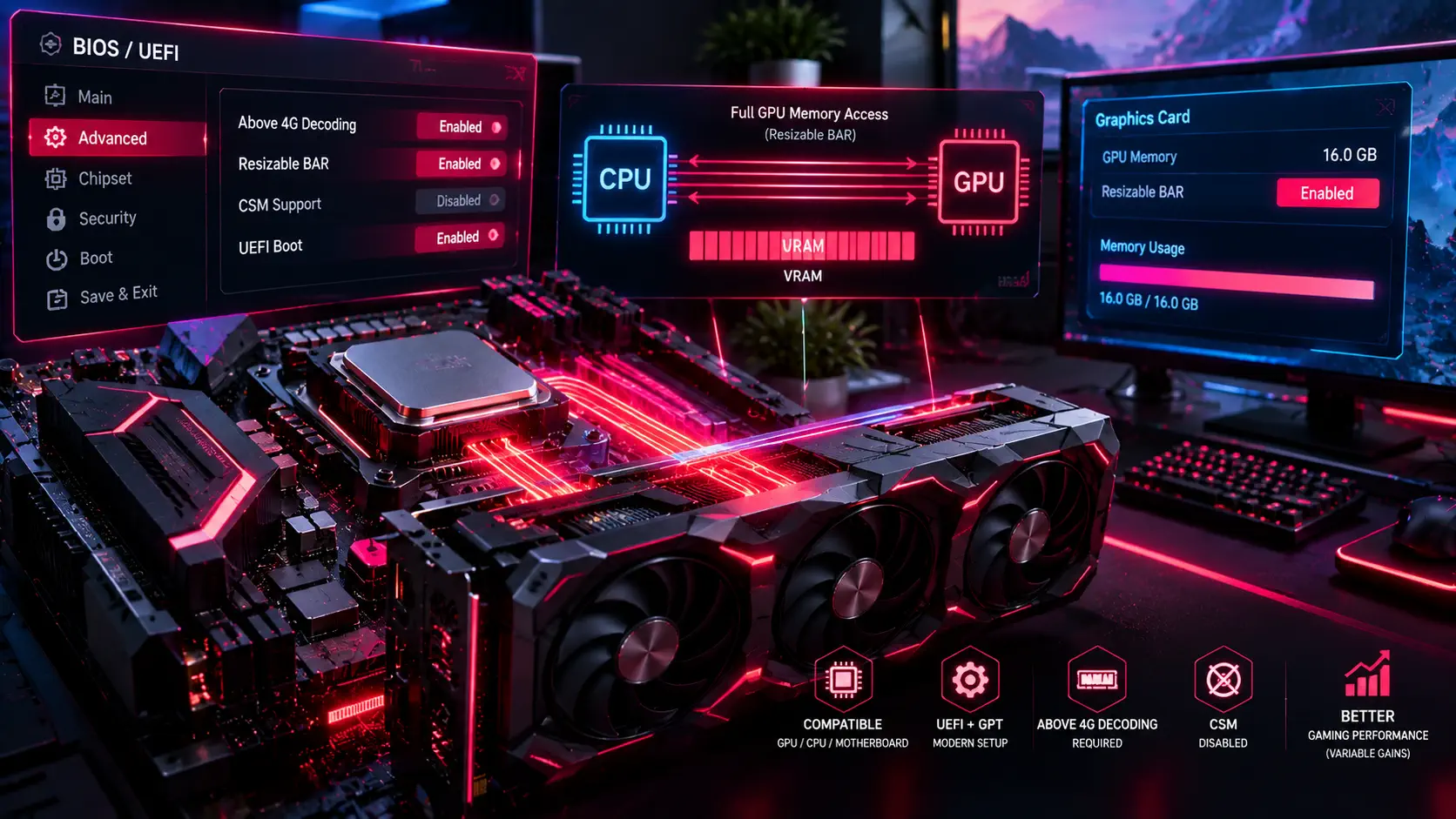
Resizable BAR is a PCI Express feature that lets your processor access the graphics card's entire memory in one go, instead of in small 256MB windows. AMD introduced it on its RDNA 2 cards under the name Smart Access Memory, NVIDIA adopted it on GeForce cards, and Intel's Arc graphics cards rely on it heavily. It costs nothing, needs no overclocking, and can improve frame rates in games that benefit from it. The catch is that on many PCs it is not switched on by default.
What You Need First
Resizable BAR needs support from three places at once: a compatible graphics card, a compatible processor and motherboard with a BIOS that includes the option, and a modern boot setup. Recent GeForce, Radeon, and Arc cards generally support it, and so do most motherboards from the last several years once their BIOS is updated. If you cannot find the setting in your BIOS, check your motherboard maker's website for a newer BIOS version, since the option often arrived in a later update.
Your Windows installation also needs to use a GPT partition table in UEFI mode, not the older MBR layout. This matters because the BIOS step that enables Resizable BAR often requires turning off legacy compatibility mode, and an MBR install may then fail to boot.
Step 1: Back Up and Update the BIOS
Before changing BIOS settings, note down your current settings or take photos of the screens. If your BIOS is several versions old, update it from your motherboard manufacturer's support page first, following their instructions carefully. A BIOS update interrupted by a power loss can leave a board unusable, so do not rush this part.
Step 2: Enable Above 4G Decoding
Restart the PC and press the key shown during startup to enter the BIOS, which is usually Delete or F2. Look in the advanced or PCI settings for "Above 4G Decoding" and enable it. This is a prerequisite: on most boards the Resizable BAR option stays hidden or greyed out until this one is on.
Step 3: Enable Resizable BAR and Disable CSM
Find the Resizable BAR option, which may be named "Re-Size BAR Support", "Resizable BAR", or on AMD systems "Smart Access Memory". PCGamesN notes that on Asus boards it sits under the PCI subsystem settings, while on Gigabyte boards it is in the Settings menu in Advanced mode. Set it to Enabled.
Then go to the Boot section and disable CSM (Compatibility Support Module), because Resizable BAR generally needs UEFI-only booting. Save and exit. If Windows fails to start afterwards, re-enter the BIOS and turn CSM back on, which usually means your install is not set up for UEFI.
Step 4: Check That It Is Actually On
Do not assume the setting worked. Download GPU-Z, a free utility, and look for the Resizable BAR field in the main window. It should read Enabled. On NVIDIA cards you can also open the NVIDIA Control Panel, choose System Information, and look for the Resizable BAR entry in the list. If it still says it is off, recheck that Above 4G Decoding is on, CSM is off, and your graphics driver is up to date.
What Performance Gain to Expect
The honest answer is that it varies. Some games see a noticeable boost, while many show little or no difference, and the gain depends on the game, the graphics card, and the processor. PCGamesN, for instance, reports a big improvement in Assassin's Creed Valhalla but does not give a single figure that applies everywhere. Treat Resizable BAR as a free, low-risk tweak worth enabling, not as a substitute for a faster card. If you are weighing an upgrade, our buyer's guides to the RTX 4070, RTX 5070, and RX 9070 XT show what a real jump in hardware looks like.
Common Problems
If the option never appears, the likeliest causes are an old BIOS, a processor or board that does not support it, or Above 4G Decoding still being off. If your PC will not boot after the change, clear the BIOS settings using the motherboard's reset jumper or by removing the battery briefly, then try again with CSM left on and your drive converted to GPT. When in doubt, consult your motherboard's manual for the exact menu names, because they differ from brand to brand.
Building or upgrading a PC and want a platform that supports this out of the box? Our budget gaming PC build and high-end gaming PC build guides list parts that work well together, and the current GPU deals show what cards cost right now.
Resizable BAR is one of the BIOS settings worth checking on a new or upgraded system. Our complete gaming PC build and upgrade guide covers the BIOS settings that matter at first boot.