A high-refresh-rate gaming monitor that only runs at 60Hz is one of the most common setup problems, and one of the easiest to fix. Nothing is broken in most cases: the monitor is simply being fed a signal that is not good enough to carry the faster refresh rate, or Windows was never told to use it. Work through the checks below in order, because the first three solve the large majority of cases.
Step 1: Check the Refresh Rate Setting in Windows 11
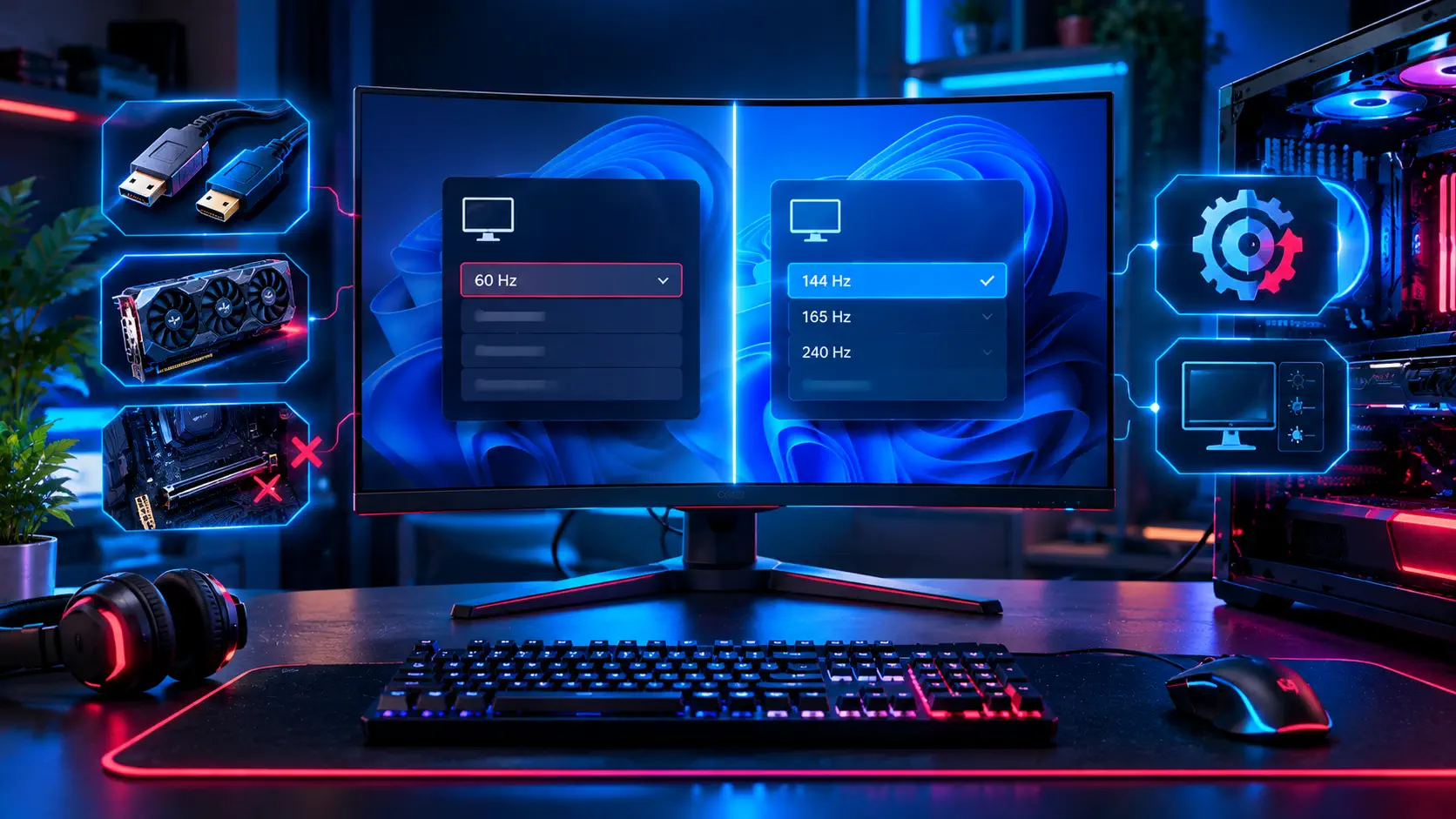
Windows does not always switch to the highest refresh rate on its own. Open Settings, go to System, then Display, then Advanced display, and look at the "Choose a refresh rate" drop-down. If your monitor's advertised rate (144Hz, 165Hz, 240Hz) is in the list, select it and confirm. If the option is missing entirely, the problem is upstream of Windows, so move on to the cable and port.
If you have more than one monitor, make sure the display selector at the top of the Advanced display page is set to the right screen. A common mistake is changing the refresh rate of the wrong monitor.
Step 2: Check the Cable and the Port
This is the single most frequent cause. High refresh rates need more bandwidth than a basic cable provides, and not every port on a monitor supports the full rate.
DisplayPort is the safest choice for high refresh rates on a gaming monitor. BenQ's troubleshooting guidance recommends DisplayPort over HDMI for this reason, and points out that an old HDMI 1.4 connection tops out at 4K at only 30Hz because of its 10.2 Gbps bandwidth, while DisplayPort has far more headroom. If you must use HDMI, use a cable labeled Premium High-Speed (or Ultra High-Speed for HDMI 2.1) rather than the thin cable that came with an old console or set-top box. Cheap, low-quality cables can also cause flickering and dropouts on top of capping the refresh rate.
Check your monitor's manual too. Some monitors only deliver their top refresh rate on one specific input, for example DisplayPort but not HDMI, and some limit the HDMI ports to a lower rate than the advertised maximum.
Step 3: Plug Into the Graphics Card, Not the Motherboard
On a desktop with a dedicated graphics card, the monitor cable must go into the ports on the graphics card at the back of the PC, not the video output on the motherboard. The motherboard ports are tied to the processor's integrated graphics, which is usually much more limited. If your desktop was built with the monitor plugged into the motherboard, move the cable and Windows will often show the missing refresh rates immediately.
Step 4: Update the Graphics Driver
An outdated or generic driver can hide the higher refresh rates. Download the latest driver directly from NVIDIA or AMD rather than relying on Windows Update, install it, and restart. After the restart, repeat Step 1. On NVIDIA systems you can also confirm the setting in the NVIDIA Control Panel under Change resolution, where the refresh rate drop-down lists the modes the card can output to that monitor.
Step 5: Check the Monitor's On-Screen Menu
Some monitors have an on-screen display (OSD) option related to refresh rate or input mode, and a few ship with a setting that limits the signal. Open the monitor's own menu with its buttons or joystick and look for a refresh rate, overclock, or input version option. BenQ's guide specifically suggests checking the OSD to see whether the monitor is set for the faster rate.
Step 6: Set the Refresh Rate Inside Your Games
Even after Windows is fixed, some games run at a lower rate until you pick the right mode. In each game's video settings, choose your monitor's native resolution and the highest refresh rate in the list, and turn off any frame cap that is set below your monitor's rate. Our guides to Valorant and Fortnite cover the settings that matter most in two of the most popular competitive games.
If It Is Still Stuck at 60Hz
Try a different cable first, because it is the cheapest test and the most common culprit. If that fails, try a different port on both the monitor and the graphics card, and test the monitor on another computer if you can. If it runs at its full rate there, the issue is your PC's driver or output. If it still caps at 60Hz, the monitor may have a fault and is worth contacting the manufacturer about.
Shopping for a screen that will actually deliver the refresh rate you pay for? Our monitor buying guide explains what to look for, and the current gaming monitor deals are a good place to compare prices. If you want to see how two popular 1440p panels compare in practice, read our ASUS TUF VG27AQ review and Gigabyte M27Q review.
Upgrading a monitor or graphics card? Our complete gaming PC build and upgrade guide explains how to set a target resolution and refresh rate before you choose parts.
Sources: BenQ — Troubleshooting: How to Make Your Monitor Run at 144Hz / 165Hz / 240Hz