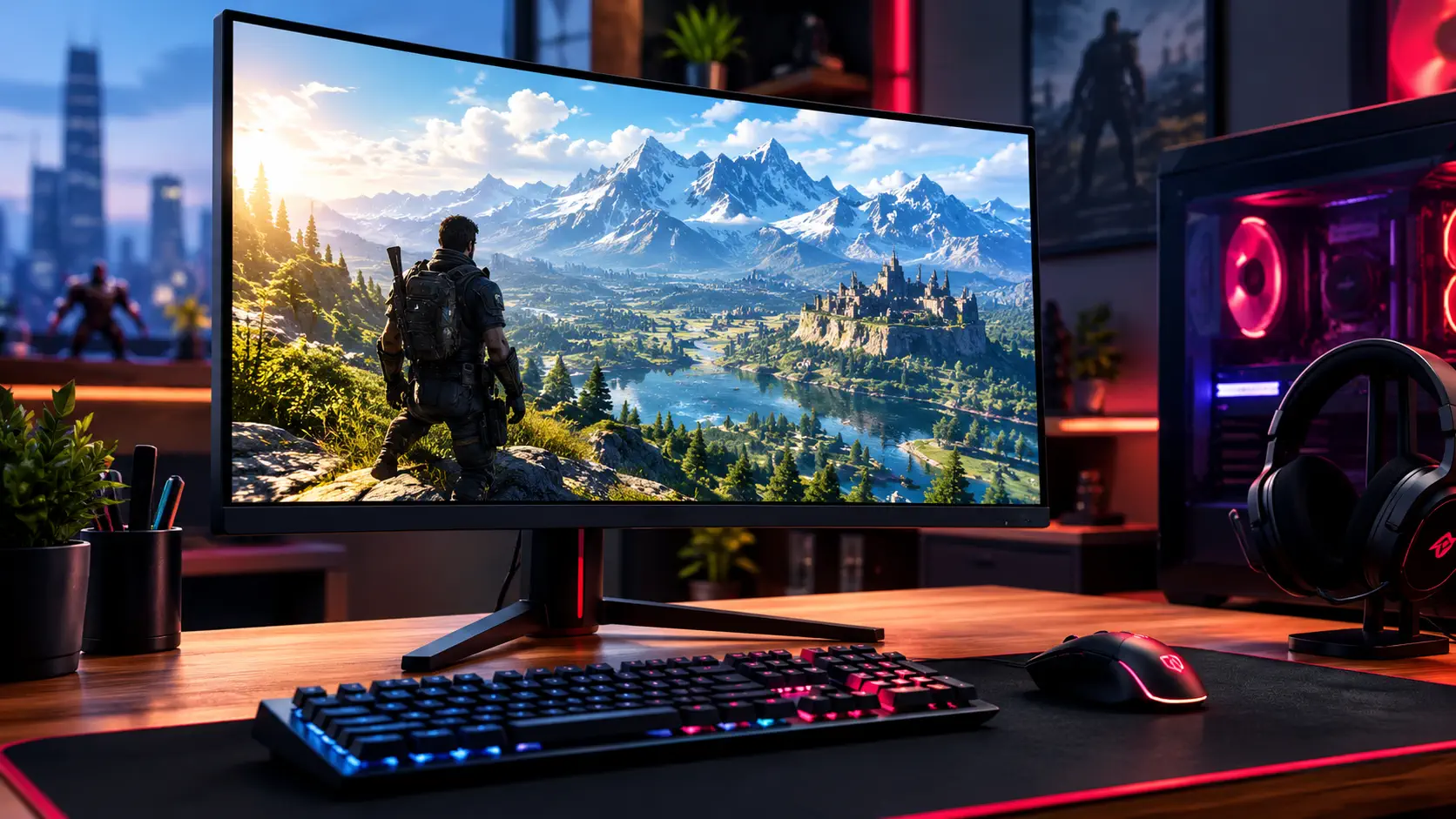
Choosing a gaming monitor comes down to fewer decisions than the spec sheets make it look like. Refresh rate, panel type, resolution, and adaptive sync cover most of what actually changes your experience — everything else on a typical product page is secondary at best. This guide breaks down what each of those specs actually does, in what order to prioritize them, and where real picks land once you've settled on a budget.
Refresh Rate: The Spec That Matters Most
Refresh rate — how many times per second the display updates, measured in Hz — is the single biggest jump in perceived smoothness a gaming monitor offers, and it's worth prioritizing over almost every other spec on this list. The jump from 60Hz to 144Hz is dramatic and immediately noticeable in any fast-paced game; the jump from 144Hz to 240Hz is real but far more subtle, and mostly matters to competitive players in twitch-reflex genres like tactical shooters. For most buyers, a 144-165Hz panel hits the point of diminishing returns — enough smoothness to feel transformative coming from 60Hz, without paying a steep premium for frame rates most GPUs can't sustain at higher resolutions anyway.
What refresh rate should you actually buy for gaming in 2026? For the vast majority of players, 144Hz to 165Hz represents the best balance of noticeable improvement and reasonable cost — the jump from 60Hz is dramatic, while pushing further to 240Hz or 360Hz delivers steadily smaller gains that mostly benefit competitive esports players in fast-twitch genres. Matching your monitor's refresh rate to what your GPU can actually sustain at your chosen resolution matters more than chasing the highest number on the box; a 240Hz monitor paired with a GPU that can only push 100 frames per second in your games wastes most of that refresh rate ceiling.
Panel Type: IPS, VA, and TN Explained
Three panel technologies dominate gaming monitors, each with a different trade-off. IPS panels offer the best color accuracy and viewing angles, with response times that have closed most of the gap with TN panels in recent years — this is the panel type behind both the ASUS TUF Gaming VG27AQ and the Gigabyte M27Q, and it's the safest default recommendation for most buyers. VA panels deliver the deepest blacks and highest contrast ratios of the three, at the cost of slower response times that can introduce noticeable ghosting in fast motion. TN panels offer the fastest response times and often the lowest prices, but noticeably worse color and viewing angles — a niche pick now mostly relevant to budget builds or esports players who prioritize raw response time above all else.
Resolution and Adaptive Sync
1440p has become the sweet spot for gaming monitors in the 27-inch size class — sharper than 1080p without demanding the GPU horsepower or price premium of 4K, and both the VG27AQ and M27Q sit in exactly this resolution and size bracket. Adaptive sync technology (NVIDIA's G-SYNC and AMD's FreeSync) eliminates screen tearing by synchronizing the monitor's refresh rate to the GPU's frame output, and it matters more than most buyers realize — a monitor without it can show visible tearing during fast panning or camera movement even at a high native refresh rate. Nearly every current gaming monitor supports FreeSync in some form, since it's a royalty-free standard AMD opened up years ago, but "G-SYNC Compatible" certification specifically validates that a given FreeSync-standard monitor has passed NVIDIA's own testing to work reliably with NVIDIA GPUs — worth checking specifically if you're running an NVIDIA card and want that validation rather than a generic, unverified compatibility claim.
What Adaptive Sync Certification Actually Checks
Not every FreeSync monitor works equally well with NVIDIA graphics cards. When NVIDIA began validating monitors in 2019, PCWorld reported that it had examined 503 adaptive sync panels and that only 28 passed, a failure rate of about 94 percent. Of the failures, 273 were rejected for insufficient variable refresh rate ranges and 202 for image quality or other issues. NVIDIA said validated monitors get variable refresh rate switched on automatically on GeForce cards, while you can still try enabling adaptive sync manually on a monitor that has not been validated. That test covered panels that were mostly 75Hz or lower, so it does not describe today's 144-165Hz monitors, but it explains why the G-SYNC Compatible label is a quick signal that a specific model has been checked.
DisplayPort or HDMI?
The cable and port matter once you chase high refresh rates. Digital Citizen's April 2026 comparison lists HDMI 2.0 at 18 Gbps, enough for 4K at 60Hz or 1080p at 120Hz, and HDMI 2.1 at 48 Gbps, which adds variable refresh rate and handles 4K at 120Hz. DisplayPort 1.4 offers 32.4 Gbps, enough for 4K at 144Hz natively, and DisplayPort 2.1 reaches 80 Gbps. Its advice for PC gaming monitors is to use DisplayPort, especially for high refresh rates, adaptive sync and multiple monitors, while consoles use HDMI because that is the only output they have. It also says the cable version matters more than brand or price, and that passive adapters generally do not work reliably for modern high-bandwidth signals. Check the monitor's port list for the version, not just the connector type.
Ports and Extra Features Worth Paying For
Beyond the core specs, a handful of extras are worth actual money rather than being marketing filler. A built-in KVM switch — letting one monitor and one keyboard/mouse control two connected PCs — is a real convenience for anyone splitting time between a gaming PC and a work laptop, and it's rare enough at mid-range prices that the M27Q's inclusion of one is a genuine differentiator. USB-C with power delivery lets a single cable carry video, data, and laptop charging simultaneously, cutting real desk clutter. HDR support on a mid-range monitor, by contrast, is usually not worth prioritizing — without the local dimming zones and peak brightness of a genuinely HDR-capable panel, "HDR" mode on a budget-to-mid-range monitor rarely delivers a meaningfully better picture than SDR.
HDR: What the DisplayHDR Label Tells You
The VESA DisplayHDR program sorts monitors into tiers. According to How-To Geek's explainer, DisplayHDR 400 is the entry tier and requires at least 400 nits of peak brightness, 95 percent sRGB coverage, 8-bit color and global dimming, while DisplayHDR 600 adds local dimming. The article says DisplayHDR 400 monitors, which make up a large share of the market, deliver only a marginal improvement over standard dynamic range because of the limited brightness gain, narrow color gamut and lack of local dimming. It also advises looking for the official DisplayHDR logo, since monitors that are only marketed as "HDR-400" or "HDR-600" are not certified. In practice, treat HDR on a mid-range monitor as a bonus, as our two example monitors below show.
Putting It Together: Two Real Picks
If G-SYNC Compatible certification and cleaner text rendering for everyday desktop use matter most, the ASUS TUF Gaming VG27AQ is the safer pick. If a wider color gamut, a built-in KVM switch, and USB-C power delivery matter more than perfectly clean text, the Gigabyte M27Q is the stronger value. We compared the two directly in our VG27AQ vs M27Q head-to-head if you want the full breakdown before deciding. Whichever direction you lean, check our current gaming monitor deals roundup — both of these panels are mature enough now that street pricing regularly beats their original list price.
Bottom Line
Refresh rate and panel type do the heavy lifting in how a gaming monitor actually feels to use; resolution and adaptive sync round out the picture; everything else is a smaller, more personal trade-off. A 1440p 144-165Hz IPS panel with adaptive sync support covers the large majority of gaming use cases without overspending on specs that mostly matter to a narrow set of competitive players — start there, then decide whether the extras (KVM, USB-C, wider color gamut) are worth the premium for your specific desk setup.
Common Questions
What refresh rate should I buy? For most players, 144Hz to 165Hz is the best balance of cost and smoothness, as covered above.
Do I need a G-SYNC Compatible monitor with an NVIDIA card? It is not required, but the label means NVIDIA validated the model, and validated monitors get variable refresh rate enabled automatically.
Should I connect over DisplayPort or HDMI? On a PC, DisplayPort is the safer default for high refresh rates and adaptive sync. Use HDMI for consoles.
Is HDR worth paying for? Not on a mid-range monitor with a DisplayHDR 400 rating or no certification at all. Look for higher tiers with local dimming if HDR matters to you.
Keep Building the Setup
If your new monitor refuses to reach its advertised rate, see our guide to fixing a monitor stuck at 60Hz in Windows 11. To finish the desk, read our gaming mouse buying guide and gaming headset buying guide, and see how every category fits in Best Gaming Hardware in 2026. Matching the monitor to your graphics card is covered in our gaming PC build and upgrade guide.
Sources: PCWorld — Nvidia's G-Sync Compatible validation flunks over 94% of FreeSync monitors, Digital Citizen — DisplayPort vs HDMI: Which Cable Actually Matters for Your Monitor, How-To Geek — What Is DisplayHDR?