Valorant is one of the lighter competitive shooters, which is why it is so popular on laptops and older desktops. When it still drops frames or stutters, the cause is usually something you can identify and fix without buying new hardware. The steps below follow the order Riot Games itself recommends: free up resources, find the bottleneck, then lower the settings that cost the most.
Step 1: Close Anything Competing for Resources
Riot's own troubleshooting guidance for low client FPS starts with the simplest step: close other applications that may be competing with Valorant for resources. Web browsers with many tabs, launchers, screen recorders, and overlay tools can all take CPU time, memory, or GPU power away from the game. Before a match, quit what you do not need, then see whether the drops disappear.
Step 2: Find Out Whether You Are CPU-Bound or GPU-Bound
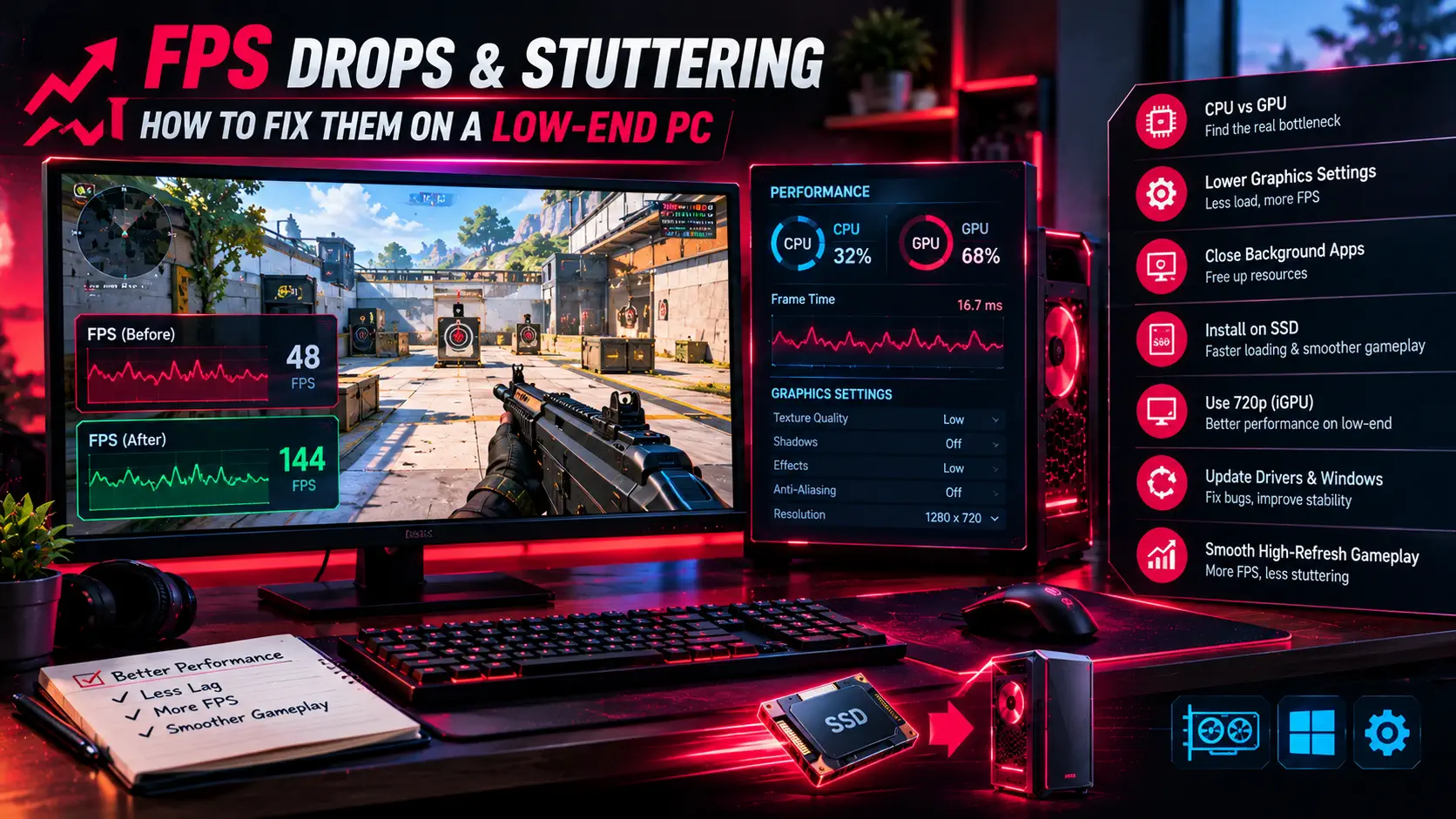
Guessing wastes time. Valorant has a built-in way to show where the bottleneck is. Go to Settings, then Video, then Stats, and turn on the performance graphs. Riot explains that these help you determine whether you are GPU-bound or CPU-bound. If the graphics card is the limit, lowering visual quality will help a lot. If the processor is the limit, lowering graphics settings will do less, and you should focus on background load and the options that reduce CPU work.
Step 3: Lower the Graphics Settings That Matter
In Settings, then Video, then Graphics Quality, Riot advises lowering Material Quality, Texture Quality, Detail Quality, and UI Quality first. It also recommends turning off Improve Clarity, Experimental Sharpening, Bloom, Distortion, and Cast Shadows, all of which add visual effects that cost frames and do not help you win fights. Intel's guidance for integrated graphics is similar: set the main quality options to Low, switch off the visual effects, and minimize anti-aliasing and anisotropic filtering.
Lowering these also tends to make enemies easier to see, because it removes clutter from the screen, which is why many competitive players run Valorant on low settings even on strong hardware.
Step 4: Install Valorant on an SSD
If Valorant is installed on a traditional hard drive, move it to a solid-state drive. Intel's support article on severe frame rate drops lists installing the game on an SSD as one of its recommended fixes, and it also helps load times between rounds and maps. If you are choosing a drive, our SSD deals roundup shows current prices.
Step 5: Reduce Resolution on Integrated Graphics
On a system with only integrated graphics, Intel advises keeping the game at a resolution no higher than 1280x720. It looks softer, but it can turn an unplayable slideshow into a smooth game. If you play on a laptop, make sure it is plugged in and set to its best performance power mode, because many laptops reduce CPU and GPU speed on battery.
Step 6: Keep Drivers and Windows Up to Date
Install the latest graphics driver from NVIDIA, AMD, or Intel, and restart afterwards. An outdated driver is a common source of stutter, especially after a Windows update. Also check that your monitor is running at its full refresh rate, because a screen stuck at 60Hz makes any game feel worse. Our guide to fixing a monitor stuck at 60Hz walks through it.
If Drops Continue
If you have tried everything above and the game still stutters, the hardware itself may be the limit. Valorant's lowest requirements are modest, but smooth, consistent frame rates at a high refresh rate need a reasonably recent processor. If an upgrade is on the cards, our budget gaming PC build guide shows what a capable low-cost system looks like.
New to the game? Start with our Valorant beginner's guide and the Valorant game profile, and check the latest Valorant update for patch changes that may affect performance.
If settings alone are not enough, an upgrade may be the answer. Our complete gaming PC build and upgrade guide helps you decide whether to build or upgrade and what to set as a target.
Sources: VALORANT — Game and Network Instability Basics, Intel — VALORANT performance on Intel graphics, GGRecon — VALORANT FPS Drops: How To Fix